Overview
Microsoft Office 365 subscription is provided to all active students and FULL TIME staff.
Please note: This guide is not intended to be used on Chromebook devices. To use Microsoft 365 applications on a Chromebook, please download the apps from the Google Play App Store or use the web.
Steps
- Visit www.office.com and select Sign in.
- Use your NetID username and password for the username and password.
- After you're logging in, at the bottom-left corner of your screen, you'll find "Apps." Click to expand and choose "More Apps."

- Located at the top-right corner, Install apps will be available to expand, choose Microsoft apps, that will download the installer.

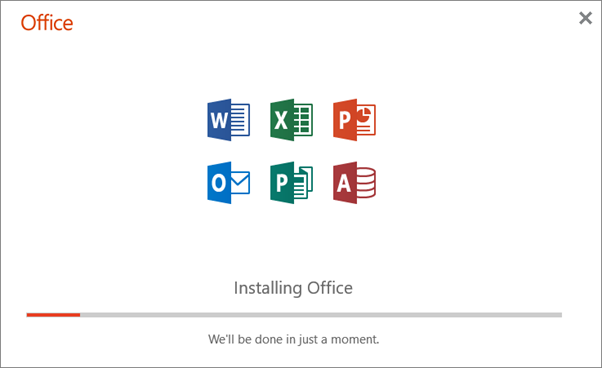
- A file will begin to download, once the file has completed downloading, please open it to begin the installation of Microsoft Office apps.
- Activating Office: To activate Office, open any Microsoft Office app, such as Word, and you'll be prompted to purchase or sign in to activate your license. Please select Sign In and enter your NetID username and password.
